
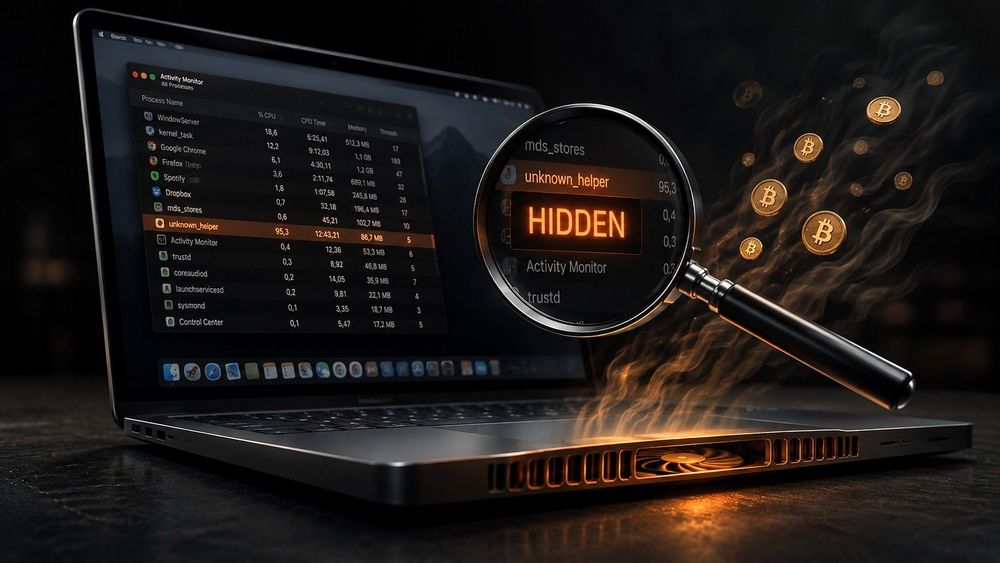
How to Find and Remove a Mac Crypto Miner
The Dutch national cyber agency has warned about attacks through the macOS Screen Sharing feature. Intruders obtained remote control of machines and installed software that mines Monero, which means the electricity bill and the fan noise belong to the victim while the payout belongs to somebody else.
This guide covers what happened, how a Mac crypto miner behaves, the symptoms worth trusting, and a removal sequence that survives a reboot. Budget about fifteen minutes. None of it requires the command line except one optional step.
What went wrong with Screen Sharing
The feature lets you connect to a desktop from another machine. It is off by default, but it gets switched on routinely - on remote servers, on office machines someone needs to reach from home, on a Mac mini acting as a build box.
Because of a flaw, the system could in some cases accept an unauthorized connection as legitimate, without a valid password. Changing or deleting screen sharing passwords did not fix it: an unpatched machine stayed open regardless.
Apple shipped the patch on August 6 for macOS Tahoe 26.6.1, Sequoia 15.7.9 and Sonoma 14.8.9. A researcher at Huntress, Ryan Dowd, scanned the internet through the Censys platform and found tens of thousands of machines potentially reachable for this attack, with port 5900 - the port Screen Sharing uses - exposed to the open internet.
How the software behaves
Using someone else's hardware to mine is called cryptojacking, and it is a quieter business than ransomware: there is no lock screen, no note, no deadline. A Mac crypto miner simply occupies the CPU and GPU and sends the proceeds to a wallet you have never seen.
The economics reward patience, so the software hides. Typical tricks include naming the process after a system service, throttling down while you are actively typing, and returning to full power at night. Some samples watch for Activity Monitor launching and go dormant while it is open.
Monero is the default choice for a reason. It is a privacy coin, so the payouts are not trivially traceable on a public explorer, and it is designed to be mined profitably on ordinary processors without specialized hardware. That combination makes any laptop a viable earner.
Two scenarios need to be kept apart. Browser-based mining runs while a tab with a compromised page is open and disappears when you close it. A full installation writes itself into the system, registers for autostart and survives reboots. The second case is worse for a reason that has nothing to do with mining: whoever put it there had enough access to leave other things behind.
Symptoms worth trusting
The first is noise. Fans spin up when the machine is idle, the case runs hot, and battery life on a laptop drops noticeably.
The second is responsiveness. The interface stutters, applications take longer to launch, video playback drops frames.
The third is network traffic. A miner maintains a persistent connection to a mining pool, so outbound traffic continues even when nothing is open.
The fourth is the absence of a window. A background process shows no interface, so it appears in neither the Dock nor the application list.
The fifth is behavior after a restart. If load returns on its own within a minute of logging in, something is registered for autostart. No single symptom proves a Mac crypto miner is present, but the combination justifies fifteen minutes of checking.
Step 1. Read the load in Activity Monitor
Open Activity Monitor through Spotlight and switch to the CPU tab. Sort by the % CPU column.
A process holding 70 to 100 percent steadily while the machine sits idle is the primary suspect. Note its name and path - double-clicking opens a details card that shows the parent process and the user it runs as.
Do not quit it yet. Kill the process before you find the file and the launch agent will simply start it again. While you are here, check the Energy tab: average energy impact over the last several hours exposes a Mac crypto miner even after it has gone quiet in anticipation of your attention.
Step 2. Inspect autostart
Persistence lives in three directories. Open Finder, press Shift-Command-G, and visit each in turn.
The folder ~/Library/LaunchAgents holds tasks for the current user, /Library/ LaunchAgents holds tasks for all users, and /Library/LaunchDaemons holds system services that run before login. Inside are files with a .plist extension.
Two things make an entry suspicious: a name that imitates a system component with a small spelling difference, and a creation date matching the day your machine started misbehaving. Open the file in a text editor and read the ProgramArguments key, which contains the path to the executable. Common hiding places are /tmp, a dot-prefixed folder in your home directory, and /Users/Shared.
Then check System Settings, General, Login Items, and remove anything you did not add deliberately. In Terminal, launchctl list prints every loaded job if you want the complete picture.
Step 3. Check profiles, extensions and accounts
Configuration profiles are a management-level foothold. Open System Settings, Privacy and Security, then Profiles. If you never enrolled in a corporate management system and a profile is present, remove it.
In your browser, disable every extension you did not install on purpose. Browser mining lives there, and extensions frequently read page content, including exchange interfaces.
Finally, look at the list of user accounts. A new administrator account you did not create means access was complete rather than partial, and the response shifts from cleanup to full compromise handling.
Step 4. Remove it in the right order
Sequence matters. Unload the autostart job first, delete the plist second, delete the binary third, and only then quit the process. Reverse that order and the service restarts the executable while you watch.
Unload the job with launchctl unload followed by the path to the plist file. Delete the plist. Delete the binary it referenced, then empty the Trash.
Return to Activity Monitor and quit the process if it is still alive. Reboot and check the load again. If it comes back, a second copy exists and the search repeats from step two.
Run a scanner as a cross-check - Malwarebytes for Mac has a free on-demand mode. The built-in XProtect covers known samples too, but its signatures update on Apple's schedule rather than instantly, so a second opinion has value.
If a file looks suspicious but you are unsure, rename it rather than deleting it and reboot. Restoring a renamed file is trivial; recovering a deleted component of an application you actually use is not.
Step 5. Close the door
Install system updates: System Settings, General, Software Update. These are the builds that close the Screen Sharing flaw the campaign relied on.
Turn off remote services you do not need: System Settings, General, Sharing, then the Screen Sharing and Remote Management toggles. If a machine sits on a public address, port 5900 should never face the internet - block it at the router or in the firewall.
Enable the firewall under Network. Change the administrator password, and confirm the account does not log in automatically without one.
If a wallet lived on that machine
The logic is unforgiving: someone with enough access to install a Mac crypto miner had enough access to install an information stealer as well. Treat the keys as compromised.
Move funds to a new address generated on a different, known-clean device. Never enter the old seed phrase on the same machine - that hands it over a second time.
Revoke existing token approvals, change exchange passwords from the clean device, and terminate active sessions. Browser cookies survive a password change, so rotating the password alone leaves a stolen session alive.
Staying clean
Install updates within a week of release. Most infections travel through vulnerabilities that were patched long before the victim was hit.
Do not run installers from unverified sources; pirated builds of paid software remain the single most common way a Mac crypto miner reaches a machine.
Once a month, open Activity Monitor with no particular reason and look at what runs while the machine is idle. Knowing your normal picture is the cheapest way to notice an abnormal one.
FAQ
Can a miner run on Apple Silicon? Yes. The architecture provides no protection against code that is already running, and ARM efficiency makes these machines attractive targets. The behavior is identical: cores occupied, chassis hot.
Is a Mac crypto miner dangerous to the hardware? It will not destroy anything directly, but continuous full load means sustained high temperatures, fan wear and faster battery degradation. On a laptop the effect becomes visible within months.
Is it a virus? Strictly speaking no - a virus replicates itself, while this arrives through an exploited service or an installer. The practical difference is small, and antivirus engines flag it as malicious either way.
Is reinstalling macOS enough? A clean install removes nearly everything, but restore your data selectively: a backup that includes the plist files brings the problem straight back. It also does not change the wallet advice above.
How do I tell a miner from a system process? By path and signature. System components live in /System and /usr/libexec, are signed by Apple and are not created yesterday. Malicious binaries typically launch from temporary directories and carry no valid signature.
What if the process refuses to quit? Boot into safe mode, which does not load third-party autostart jobs, and the file deletes without resistance. On Apple Silicon hold the power button at startup; on Intel hold Shift.
Crypto markets expert and head of content and marketing at EIDEX. Covers market structure, exchange infrastructure and cross-chain trading - turning on-chain data and market shifts into clear, actionable research for traders.